
Are you worried about unauthorized access to your accounts? Using account lockout and management tools can be your best defense.
These tools help protect your information by stopping repeated login attempts and managing who can access your accounts. But how do you use them effectively? You’ll discover simple steps to set up and control these tools, keeping your data safe without hassle.
Keep reading to learn how to take full control of your account security and avoid common pitfalls that put your information at risk.
Account Lockout Basics
Account lockout is a security feature that protects user accounts from unauthorized access. It temporarily blocks access after several failed login attempts. This helps prevent hackers from guessing passwords. Understanding account lockout basics is important for managing security and user access effectively.
Knowing what causes lockouts and common policies helps admins create balanced rules. These rules protect accounts without causing frustration for users. Let’s explore the main triggers and typical lockout settings.
What Triggers Account Lockouts
Repeated wrong password entries trigger account lockouts. Systems count failed login attempts within a set time. If the number exceeds the limit, the account locks. Some systems also lock accounts after suspicious activity or multiple device logins.
Lockouts stop automated attacks like brute force. They also prevent unauthorized users from guessing passwords. Users must wait or contact support to regain access. This delay adds a layer of security to sensitive information.
Common Lockout Policies
Lockout policies vary but share similar rules. Most systems lock accounts after three to five failed attempts. Lockout duration can range from a few minutes to hours. Some policies require manual unlocking by an administrator.
Time-based resets clear the failed attempt count after some time. This helps avoid locking out users after honest mistakes. Choosing the right policy balances security and user convenience. Proper management reduces support requests and keeps accounts safe.
Credit: activedirectorypro.com
Choosing Lockout Tools
Choosing the right account lockout tools is key to keeping your systems safe. These tools help stop unauthorized access by locking accounts after too many login attempts. Pick a tool that fits your needs and is easy to manage. Consider how it works with your current system and how much control it gives you over account security.
Built-in Os Features
Most operating systems come with account lockout features. These are usually free and work well with the system. You can set limits on login attempts and decide how long accounts stay locked. These tools are simple to use and good for small businesses or personal use. They require little setup and often integrate with other security settings.
Third-party Solutions
Third-party tools offer more options and flexibility. They can handle many accounts across different systems. These tools often include extra features like alerts and detailed reports. They suit larger organizations with complex security needs. Some tools also provide easier management through a single dashboard. These solutions usually cost more but offer better control and support.
Configuring Lockout Settings
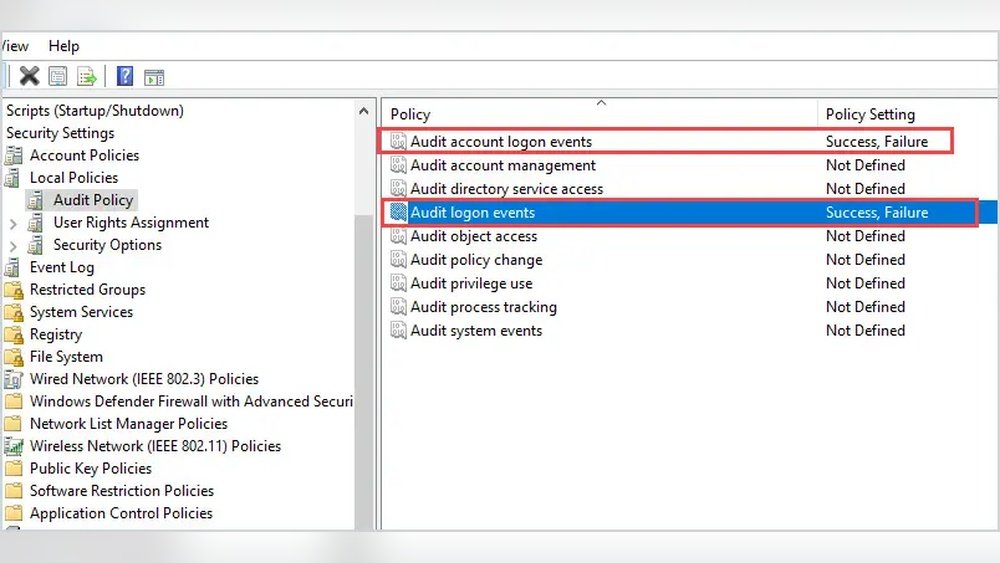
Configuring lockout settings is key to protecting accounts from unauthorized access. It stops repeated login attempts that try to guess passwords. Setting these controls right balances security and user convenience.
Good lockout settings reduce hacking risks without locking out real users too often. Let’s explore how to set thresholds, lockout durations, and reset counters effectively.
Setting Thresholds
Thresholds define the number of failed login attempts allowed before locking the account. Set this number low enough to block attacks but high enough to avoid user frustration. Common thresholds range from three to five attempts. Monitor your system to adjust thresholds based on typical user behavior.
Defining Lockout Durations
Lockout duration controls how long an account stays locked after reaching the threshold. Short durations, like 15 or 30 minutes, can reduce user disruption. Longer durations increase security but may frustrate users. Choose a duration that fits your security needs and user tolerance.
Resetting Counters
Reset counters clear failed login attempt counts after a set time. This allows users to try again without being locked out forever. Common reset times range from 15 minutes to an hour. Proper reset timing helps balance security and usability.

Credit: webware2.wordpress.com
Managing Locked Accounts
Managing locked accounts is a key part of maintaining system security. Locked accounts occur after multiple failed login attempts. This protects against unauthorized access. Proper handling of these accounts helps keep users productive. It also ensures security policies are followed.
There are two main ways to manage locked accounts. One is manual unlocking by administrators. The other is using automated tools that handle unlocks. Both methods have benefits and suit different environments.
Manual Unlock Procedures
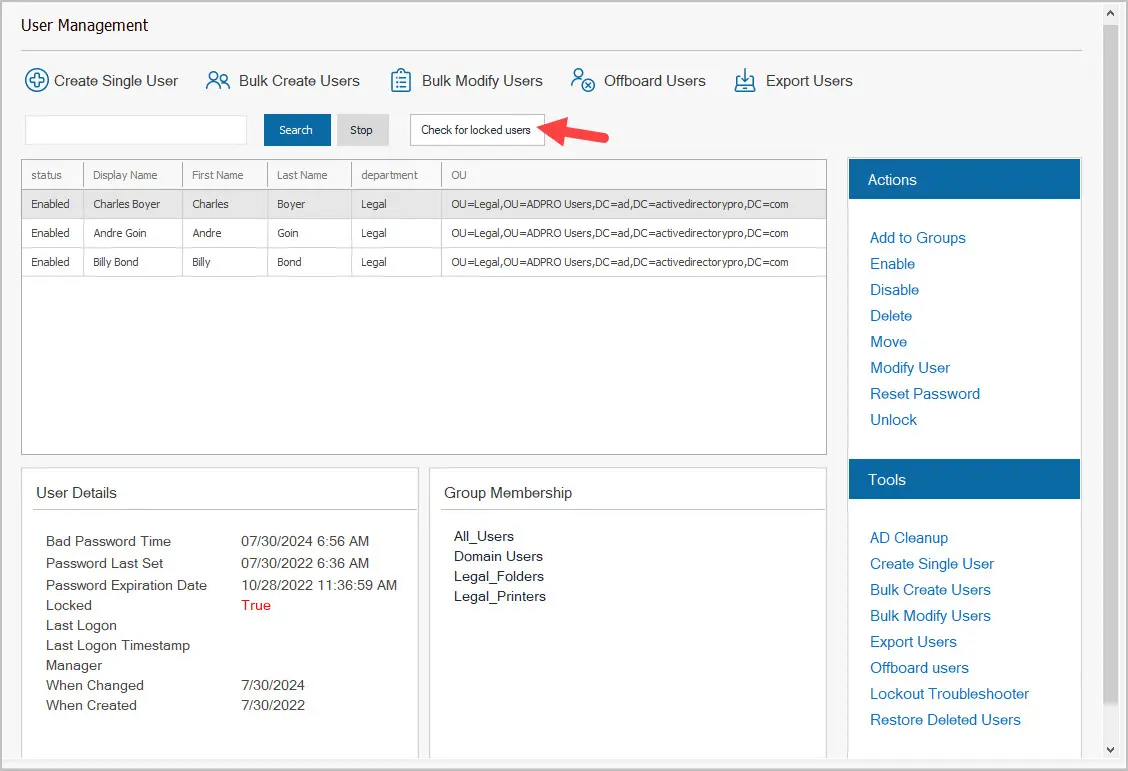
Manual unlocking requires admin access to the user management system. The admin first verifies the user’s identity. This step prevents unauthorized account changes. After verification, the admin resets the account lock status. They may also reset the password if needed.
This process is simple but can be slow. It works well for small teams. Manual unlocks allow careful control over each case. Admins can check logs and audit trails. This helps identify repeated lockouts or security risks.
Automated Unlock Options
Automated unlock tools remove the need for admin intervention. These tools unlock accounts after a set time. This time-based unlock reduces downtime for users. Automated systems can also send alerts to admins. Alerts notify them of frequent lockouts or suspicious activity.
These tools often integrate with existing security software. They improve efficiency in large organizations. Automated unlocks balance user convenience and security. They ensure locked accounts do not block productivity for long.
Monitoring And Reporting
Monitoring and reporting are key parts of using account lockout and management tools. They help you keep an eye on security events and understand user behavior. Good monitoring shows when accounts get locked and why. Reporting helps you see patterns and take quick action to improve security.
Tracking Lockout Events
Track every lockout event carefully. Know who got locked out and at what time. Check the reason for each lockout. Was it a wrong password or suspicious activity? Monitoring these details helps spot potential attacks early. It also helps support teams assist users fast.
Generating Reports
Generate clear reports regularly. Use them to summarize lockout trends and causes. Reports should be easy to read and share. They help managers understand security risks. Reports also guide decisions to adjust lockout settings. This keeps the system safe and user-friendly.

Credit: www.youtube.com
Best Practices For Lockout Management
Best practices for lockout management help keep accounts safe without causing user frustration. Balancing security and ease of use is key. Good strategies reduce risks and avoid locking out legitimate users.
Effective lockout management detects real threats and stops attackers. At the same time, it lets genuine users access their accounts smoothly. Following clear steps improves both security and user experience.
Balancing Security And Usability
Set lockout thresholds wisely. Too strict rules block users often. Too loose rules invite attacks. Find a middle ground that protects accounts but allows normal activity.
Use time-based lockouts. Short lockout periods reduce user frustration. They give attackers less time to try again. Let users try again after some minutes.
Allow easy account recovery. Provide clear instructions for unlocking accounts. Use secure methods like email or phone verification. This helps users regain access fast and safe.
Preventing False Positives
Monitor login attempts carefully. Analyze patterns to spot real threats. Avoid locking accounts for simple mistakes or network errors.
Use multi-factor authentication. It lowers risks without locking users out. It adds an extra security layer beyond passwords.
Update lockout rules regularly. Adjust settings based on new threats and user behavior. Keep the system flexible and responsive.
Troubleshooting Common Issues
Troubleshooting account lockout and management tools can be challenging. These tools protect accounts but sometimes cause access problems. Understanding common issues helps fix them quickly.
Quick action reduces downtime and user frustration. Clear steps make solving lockout problems easier. Focus on finding causes and fixing persistent lockouts.
Identifying Lockout Causes
First, check the reason for the lockout. Look at error messages for clues. Common causes include multiple wrong password attempts. Another cause is expired passwords.
Check if users have connected devices. Old passwords saved there can cause lockouts. Verify if account policies are too strict. Sometimes, system errors cause lockouts too.
Resolving Persistent Lockouts
Reset the user’s password to resolve lockouts. Clear any cached credentials on devices. Review account lockout policies for balance. Adjust thresholds to reduce false lockouts.
Monitor user activity after changes. Use management tools to unlock accounts manually. Educate users on correct login steps. Regularly update software to prevent errors.
Frequently Asked Questions
What Is Account Lockout In Security Management?
Account lockout is a security feature that temporarily disables user access after multiple failed login attempts. It prevents unauthorized access and protects accounts from brute force attacks, enhancing overall system security.
How Do Account Management Tools Improve User Security?
Account management tools automate user access control and monitor account activity. They help enforce policies, detect suspicious behavior, and reduce risks of unauthorized access or data breaches effectively.
When Should You Reset Locked Accounts Manually?
Reset locked accounts manually if automatic unlock delays affect productivity. Ensure identity verification before reset to maintain security and prevent unauthorized access to sensitive information.
Can Account Lockout Settings Be Customized?
Yes, account lockout settings can be customized based on organizational policies. You can adjust thresholds, lockout duration, and notification alerts to balance security and user convenience.
Conclusion
Account lockout and management tools keep your systems safe. They stop unauthorized access quickly. Using these tools helps protect important data. Setting clear rules for lockouts avoids problems. Regularly reviewing lockout settings improves security. Users stay informed and reduce mistakes.
Simple steps make managing accounts easier. Strong security starts with good account control. Keep your systems secure with smart lockout tools.
