
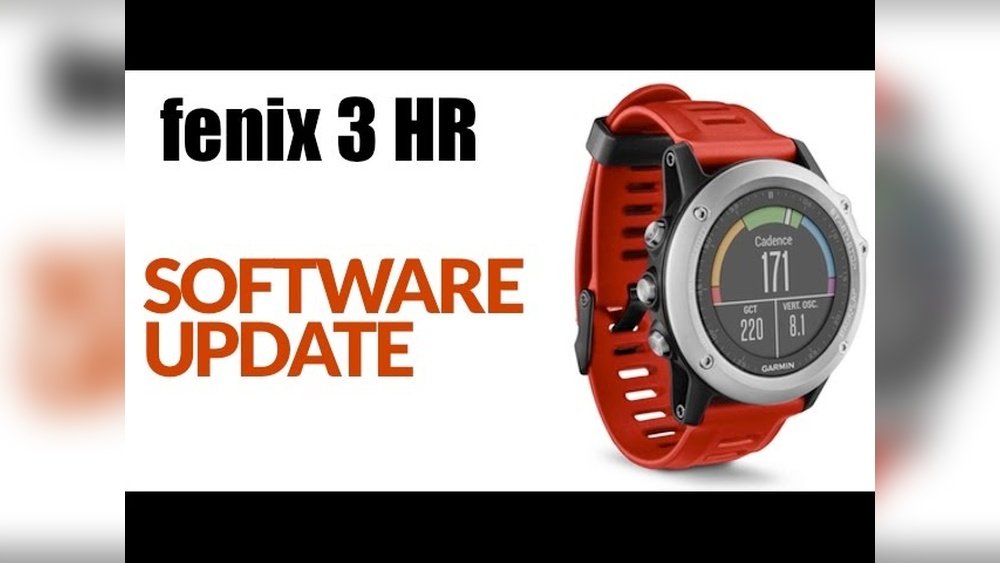
Are you looking to get the most out of your Garmin Fenix 3 HR? Keeping your watch’s software up to date is the key to unlocking new features, improving performance, and fixing bugs that might slow you down.
But how exactly do you update your Garmin Fenix 3 HR software without hassle? In this guide, you’ll find simple, step-by-step instructions that anyone can follow. By the end, you’ll know exactly how to keep your device running smoothly and ready for your next adventure.
Let’s dive in and make sure your Garmin is always at its best.
Prepare Your Garmin Device
Preparing your Garmin Fenix 3 HR before a software update is important. It helps the update process run smoothly. Small steps can prevent problems later. Take time to get your device ready.
Start by checking the battery level. A fully charged watch avoids interruptions. Then, find out the current software version. This helps know if an update is needed. These simple tasks save time and effort.
Charge Your Fenix 3 Hr
Plug your Garmin Fenix 3 HR into a power source. Use the original charging cable for best results. Let it charge until the battery is full. A full battery ensures the device won’t turn off during update. Avoid updating with low battery. This step protects your device.
Check Current Software Version
Turn on your Fenix 3 HR watch. Press the menu button to open settings. Scroll to “System” and select it. Find “About” and tap to see software version. Write down or remember the version number. This info helps decide if you need an update.

Credit: centromedicoloira.com
Connect To Garmin Express
Connecting your Garmin Fenix 3 HR to Garmin Express is the first step to update its software. Garmin Express is a free app for your computer. It helps manage your device updates and backups easily.
This connection allows your watch to receive the latest features and fixes. Keeping your watch updated improves performance and adds new functions. Follow the steps below to connect your device to Garmin Express.
Download And Install Garmin Express
Go to the official Garmin website to download Garmin Express. Choose the version for Windows or Mac, depending on your computer. Click the download button and wait for it to finish.
Open the downloaded file to start the installation. Follow the instructions on the screen. The process is simple and quick. After installation, launch Garmin Express from your desktop or start menu.
Add Your Device To Garmin Express
Connect your Garmin Fenix 3 HR to your computer using the USB cable. Make sure the watch is powered on. Garmin Express will detect your device automatically.
Click “Add a Device” in Garmin Express. The app will search for your watch. Select your device from the list and click “Next.” Follow the on-screen prompts to complete the setup.
Your device is now connected to Garmin Express. You can check for software updates and install them easily.
Download And Install Updates
Keeping your Garmin Fenix 3 HR software updated is important. Updates fix bugs and add new features. The update process is simple and takes only a few steps. Follow these instructions to download and install updates easily.
Check For Available Software Updates
Turn on your Garmin Fenix 3 HR. Connect it to your computer using the USB cable. Open Garmin Express on your computer. The app will check for new updates automatically. If an update is available, you will see a notification. Make sure your watch has enough battery before continuing.
Start The Update Process
Click the “Install” button in Garmin Express. The software will begin downloading the update files. Keep your watch connected to the computer. Do not unplug or turn off the device during this step. Follow any on-screen instructions to proceed smoothly.
Wait For Update Completion
The update may take several minutes. The watch may restart one or more times. Wait until the progress bar reaches 100%. Do not disconnect the watch until the process finishes. Once done, your Garmin Fenix 3 HR is ready to use with the latest software.
Update Via Wi-fi
Updating your Garmin Fenix 3 HR via Wi-Fi is simple and fast. It lets you download the latest software without using a computer. This keeps your watch running smoothly with new features and fixes. Follow the steps below to connect your watch and start the update over Wi-Fi.
Connect Fenix 3 Hr To Wi-fi
First, open the settings on your Fenix 3 HR. Scroll to the Wi-Fi menu and select it. Choose your home or work Wi-Fi network from the list. Enter the password carefully to connect your watch. Once connected, your watch will remember this network.
Initiate Update Over Wi-fi
Next, go to the Garmin Express app on your phone or computer. Make sure your Fenix 3 HR is nearby and connected to Wi-Fi. Garmin Express will check for available updates automatically. Click the update button to start the download. The watch will install the update after the download finishes. Do not turn off your watch during this process.
Troubleshooting Common Issues
Troubleshooting common issues during a Garmin Fenix 3 HR software update helps prevent frustration. Problems can occur but most have simple fixes. Understanding these issues saves time and ensures your device runs smoothly.
Update Fails Or Freezes
Updates may fail or freeze due to low battery. Charge your watch fully before starting. A weak USB connection can also cause problems. Use the original cable and a reliable USB port. Restart the device and Garmin Express if the update stops. Close other programs to free up computer resources. Try the update again after these steps.
Garmin Express Not Recognizing Device
Garmin Express might not detect your Fenix 3 HR. Check that the watch is connected correctly to the computer. Use a different USB cable if needed. Restart both the watch and computer. Make sure Garmin Express is the latest version. Disable any security software that might block the connection. These actions often solve detection problems.
Wi-fi Connection Problems
Wi-Fi issues can prevent updates on your watch. Ensure the watch is close to the router. Verify the network password and settings. Restart the router and the watch to refresh connections. Avoid using public or unstable Wi-Fi networks. Use a private, stable network for better results.
Credit: www.shoshitamam.com
Post-update Tips
After updating your Garmin Fenix 3 HR software, a few important steps help keep your watch running well. These tips make sure the update works correctly and your device stays ready for use. Follow these simple checks and actions to get the best from your updated watch.
Verify Update Success
Check that the update finished without errors. Turn on your watch and open the settings menu. Look for the software version number. It should match the latest version from Garmin. Test a few basic functions to see if everything runs smoothly. This quick check prevents issues later.
Restore Settings If Needed
Sometimes updates reset your preferences. Review your watch settings like time, alarms, and notifications. Change any options back to what you prefer. Restoring settings keeps your experience personal and comfortable. Save your favorite profiles again if the update cleared them.
Explore New Features
Updates often add new tools or improve old ones. Take time to find these new features. Read the Garmin release notes for details. Try using any new activity tracking or health monitoring options. Getting to know these features helps you enjoy your watch more.

Credit: www.youtube.com
Frequently Asked Questions
How Do I Update Garmin Fenix 3 Hr Software?
To update, connect your Fenix 3 Hr to Garmin Express on your PC or Mac. Garmin Express detects updates and installs them automatically. Ensure your device is charged and connected via USB during the process to avoid interruptions.
Why Is Garmin Fenix 3 Hr Software Update Important?
Updating improves device performance, fixes bugs, and adds new features. It ensures your watch runs smoothly and stays compatible with Garmin Connect and other apps. Regular updates enhance user experience and device security.
Can I Update Garmin Fenix 3 Hr Without A Computer?
No, Garmin Fenix 3 Hr software updates require Garmin Express on a computer. The device must connect via USB to download and install updates. Mobile app updates are not available for this model.
How Long Does Garmin Fenix 3 Hr Update Take?
Updates typically take 10 to 20 minutes depending on file size and connection speed. Keep your watch connected and avoid disconnecting during the update to prevent errors or device issues.
Conclusion
Updating your Garmin Fenix 3 HR software keeps your watch running smoothly. It helps fix bugs and adds useful features. The process is simple and takes just a few steps. Regular updates improve your device’s accuracy and performance. Stay connected and check for updates often.
This way, your watch stays reliable for all your activities. Keep your Garmin ready for any adventure. Easy updates mean less hassle and more fun.
